Each Act and Bill, and all PCO-published secondary legislation, is posted on its own unique legislation webpage, with a contents pane.
Agency-published legislation has different navigation tools. See Navigate agency-published legislation for more on this.
You can also search within legislation. See Search within a document using Search content.
Watch our quick start guide on how to navigate legislation
Watch a short video that walks you through how to navigate legislation, and move between documents. [Video duration 02:56]
Identify legislation type, status, and administrator
At the top of each legislation page, above its title, is text to identify the:
legislation type
legislation status
legislation date and number
the administrating agency for this legislation.

Choose legislation version
If legislation has multiple versions (the current and earlier versions), you can select a different version from the Versions tab.
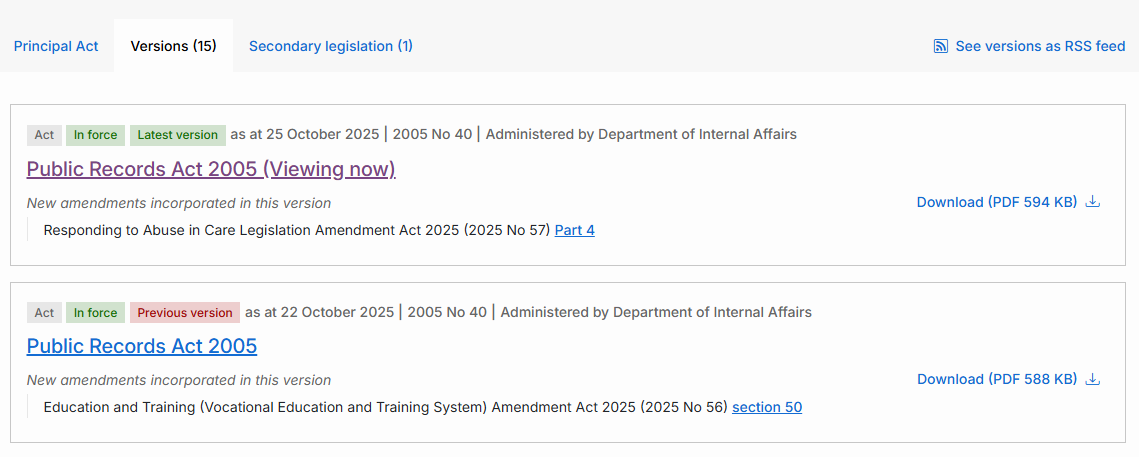
The cards in the Versions tab show new amendments incorporated in each version. Please note there is a known issue that some amendments don’t appear on these cards, so we recommend verifying the amendments from the consolidation note at the end of legislation. We are working to fix this issue as soon as possible.
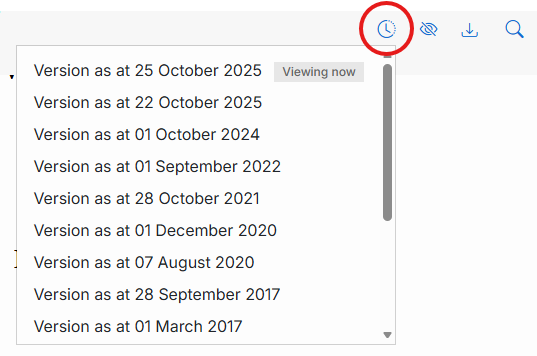
When viewing the legislation, when you scroll down, version options are also available from the clock icon in the static bar at the top of the legislation page. Select the version you want to view. The version that you are viewing now is noted in the list of options.
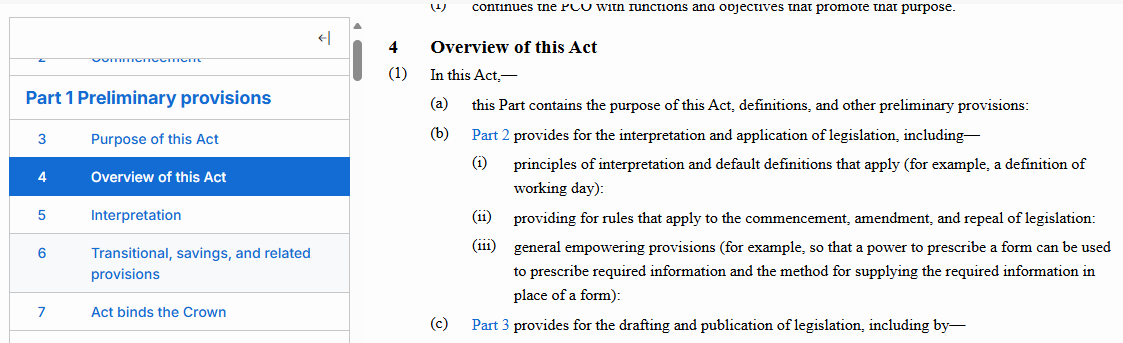
Find sections or clauses of legislation with the legislation Contents pane
All legislation on this site includes a legislation Contents pane. In desktop view, this appears to the left of the legislation. The Contents pane contains a linked list of all sections or clauses in the legislation.
To navigate directly to a specific section or clause, scroll up and down the Contents pane and select the one you want. Your selection will appear at the top of your reading pane.
Hide or display elements
You can choose whether to display the table of contents and repealed sections and history notes.
Change how the table of contents is displayed
You can hide the contents pane. In desktop view, do this by clicking the arrow at its top.
Reveal the contents pane again by clicking the reverse arrow.

If you prefer to see the contents in the main pane at the start of the document, use the Show contents button to display it.

Hide or display repealed sections or clauses and history notes
For Acts and PCO-published secondary legislation, in desktop view, you can view or hide repealed sections or revoked clauses and history notes. If there are repealed sections (or revoked clauses) or history notes available, the Hide/show content toggle will display.

As you scroll down, only the icon for this toggle will display.

To hide or view this information, click on the toggle, then turn the switch off or on.

When the toggle is switched on, repealed sections or revoked clauses and history notes will be visible in both the Contents pane and the Act.
Repealed sections and headings will be labelled as [Repealed], as shown below.
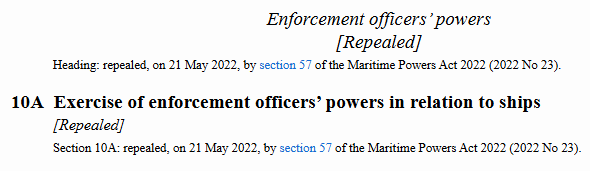
Similarly, revoked clauses will be labelled as [Revoked]. Switching off the toggle will hide this material.
Act tabs: find versions and related legislation
Acts have up to four tabs, depending on available information and related legislation. A sample view of tabs is shown below. See also About Acts.

Principal Act (or Amendment Act if appropriate) = the text of the Act
Versions = linked list of past versions of the Act, with status and version date. If there are amendments not yet incorporated, they will be listed here
Secondary legislation = linked list of secondary legislation made under this Act, if the secondary legislation is on or linked to from this website. See also Agency-published legislation available on this website.
Related Bills = link to the most recent version of the Bill that resulted in this Act.
Bill tabs: find versions and related legislation
Bills have up to four tabs, based on available information, including related Amendment Papers. A sample view of tabs is shown below. See also About Bills.
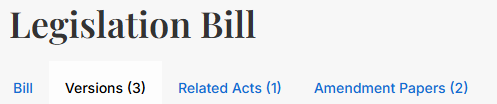
Bill = the text of the Bill
Versions = linked list of past versions of the Bill, with status and version date
Related Acts = linked list of Acts that resulted from this Bill
Amendment Papers = linked list of Amendment Papers for this Bill. This tab also includes Supplementary Order Papers for older Bills.
Navigate Amendment Papers
Each Amendment Paper is posted on its own unique legislation webpage, with a contents pane.
Amendment Papers have two tabs, as shown in the sample below.

Amendment Paper = the text of the Amendment Paper
Related Bills = linked list of Bills that this Amendment Paper amends.
Navigate PCO-published secondary legislation
Each document of PCO-published secondary legislation is posted on a unique legislation webpage, with a contents pane.
PCO-published secondary legislation has up to three tabs, as shown in the sample below. See also About secondary legislation.

Secondary legislation (or Amendment secondary legislation if appropriate) = the text of the secondary legislation
Versions = linked list of past versions of the legislation, with status and version date. If there are amendments not yet incorporated, they will be listed here
Empowering Acts = linked list of Acts that empower the making of this secondary legislation.
Navigate agency-published legislation
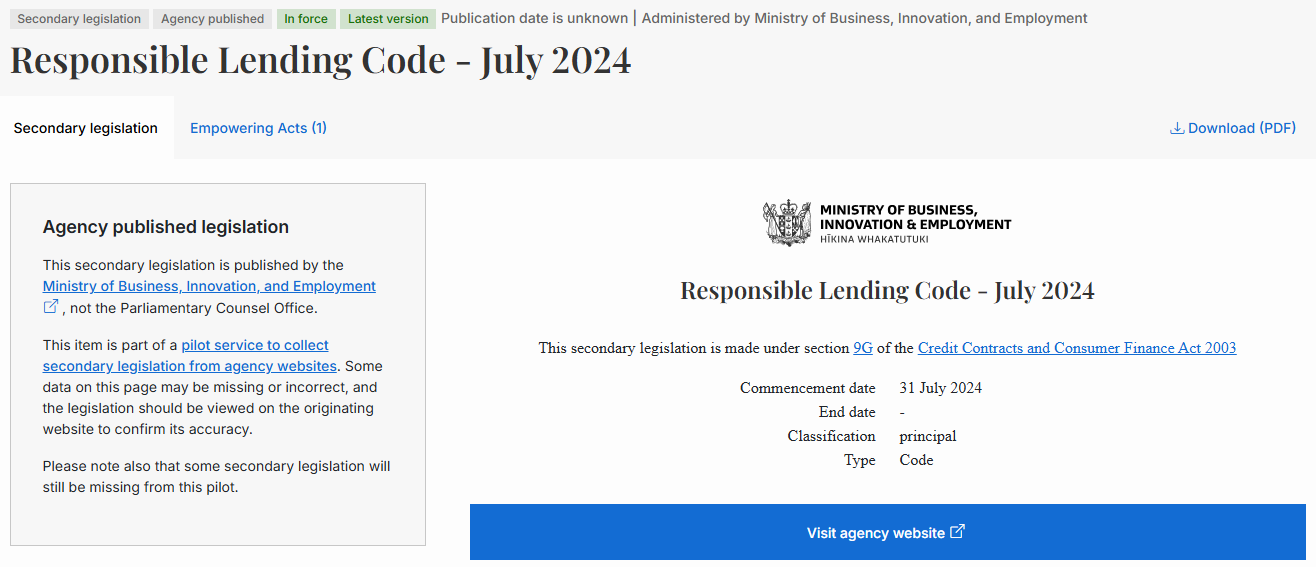
Agency-published legislation has different in-document navigation because it is published by its administering agency. See also About secondary legislation.
Agency-published legislation displays on this website as an overview and a link to the legislation. The overview links to the legislation on the agency website or the Gazette. The link is displayed as a blue button. When you click on the link, you leave this website and are taken to the legislation at its source. You can also download a PDF of some agency-published legislation from a link at the top right of the page.
See also Agency-published legislation available on this website.