
Watch our quick start guide on how to search for legislation
Watch a short video that walks you through searching for legislation. [Video duration 02:44]
About search options for New Zealand legislation
You have two options to search for legislation on this website:
Global search: search titles or content quickly based on search terms and legislation status.
Advanced search: search titles or content using detailed filters.
Global search and Advanced search will find both legislation published on this website and agency-published legislation.
When you have located your legislation and are viewing it, you have a third search option: the Search content feature.
Search quickly with Global search
Here is how to use Global search for a fast search with keywords. Global search displays at the top of every page.

Enter your keywords in the search field. You can search by title, text, and year.
Select your legislation status: Any legislation, In force, Bills, or Not in force.
Select where your keywords appear: Title contains or Content contains.
Then, click the Search button.
Your search results display.
Some tips on selecting legislation status:
for in force Acts and secondary legislation, select In force
for Bills, select Bills
for Amendment Papers, select Any legislation
for repealed Acts and revoked secondary legislation, or Acts and secondary legislation not yet in force, select Not in force
if unsure, select Any legislation.
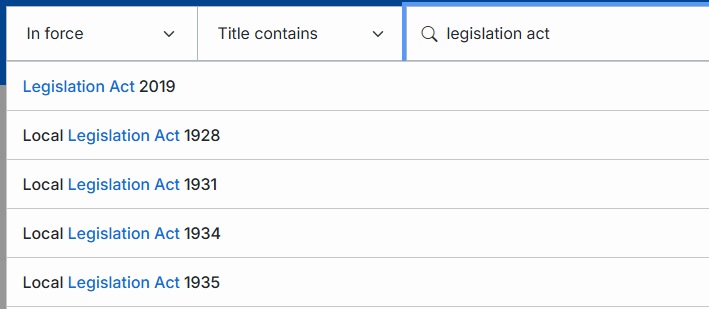
Global search includes an autocomplete function. When you start to enter your keywords, you will get a list of legislation options that match your keywords. You can click on any of these to open that legislation.
Use Advanced search for specific results
For more specific results, filtered by legislation type, date, and more, use Advanced search. You can also use Advanced search to search across titles and content at the same time. The Advanced search button displays in the main menu bar.

In the menu bar, click the Advanced search button, shown above.
The Advanced search screen displays.
Select the types of legislation you want to search for: Acts, secondary legislation, Bills, and Amendment Papers. You can select more than one.
Enter your keywords in the Title or Content fields, or both, and select your search filters.
After entering all your terms and filters, click the Search button.
Your search results display.
Advanced search options include the following:
Title – searches terms within title content
Content – searches terms within legislation content
Specific year or Year range – year values
Legislation number – each Act and Bill, and all PCO-published secondary legislation, has a number. Search for this here
Administering agencies – drop-down menu with all administering agencies.
Further search filters display at the bottom of the screen depending on the legislation types you have selected:
Acts – refine by Classification, Status, and Type
Secondary legislation – refine by Classification, Status, Type, and Publisher. Note that during the pilot, Classification, Status, and Type may not be accurate for agency-published secondary legislation - see Known issues with agency-published legislation in the pilot phase
Bills – refine by Status and Type
Amendment Papers – no search filters.
For help with terms used in Advanced search, see the Glossary.
Get results on the Results page
For both Global and Advanced search, results display in the search Results page. The search heading notes if you have used Advanced search.
After an Advanced search, your chosen search terms and filters display at the top of the screen. You can edit or clear the filters for another search. You can also refine your results using filters.
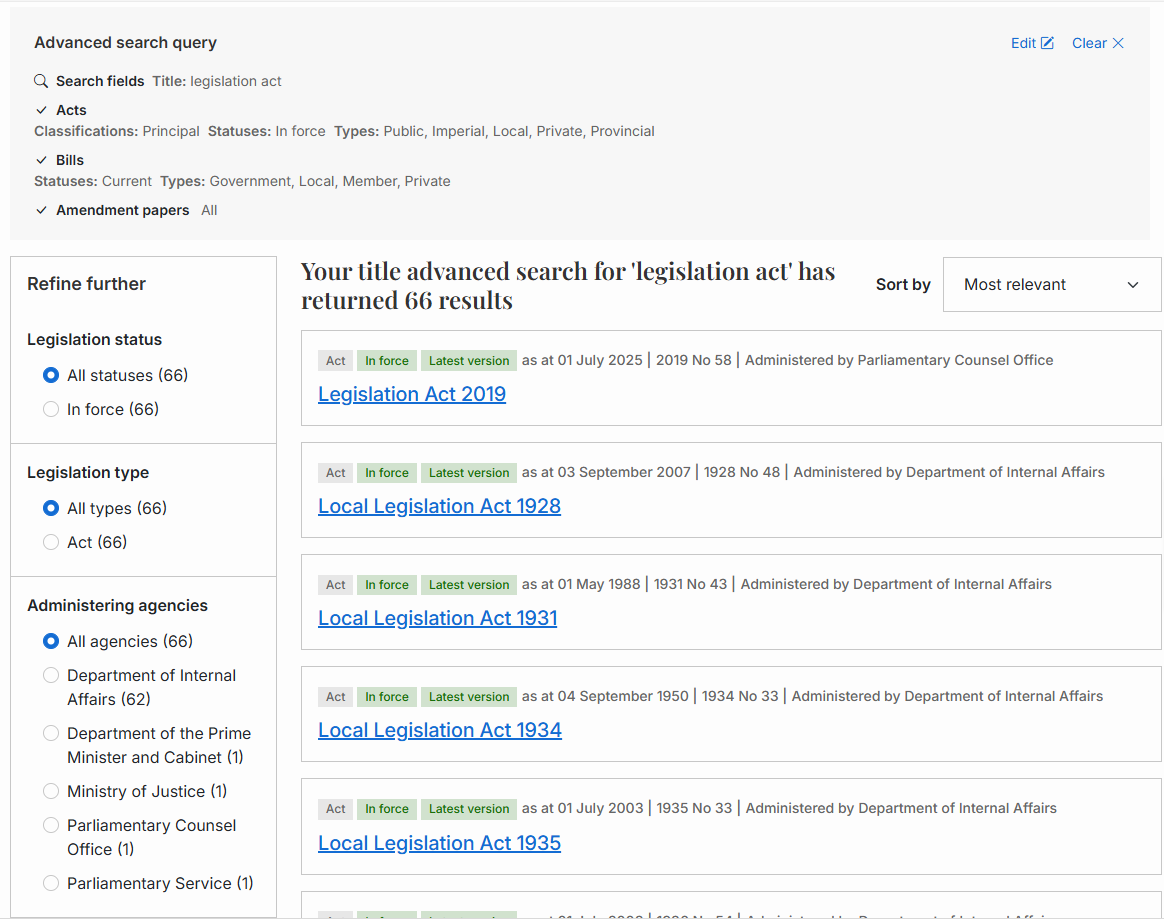
Your search results will include the following values for each result item, where appropriate:
type: Act, Secondary legislation, Bill, Amendment Paper
legislation status: In force, Not yet in force, Repealed, Revoked, Agency published
Date
year and legislation number
administering agency
title, linked to the legislation.
Refine and sort search results in the Results page
You can refine search results further, where appropriate, with the following values:
by legislation status
by legislation type
by administering agencies.
You can change how they are displayed:
You can choose to view 10, 20, 50, or 100 results at a time.
You can sort results by:
Most relevant
Most recently updated
Alphabetical A – Z
Alphabetical Z – A
Year (oldest)
Year (newest).
Search within a document using Search content
When you have located your legislation, you can search within its text using the Search content feature. Find Search content at the top of the page when viewing legislation.
When you scroll through legislation, the download button becomes an icon.

Note that Search content is not available for agency-published legislation.
For long documents, particularly the Income Tax Act 2007, we recommend using Search content rather than your browser’s Ctrl-F function. This is because Ctrl-F will be unable to locate any text within the document that has not downloaded.
Use Boolean search options
Boolean queries are search queries that combine multiple search options using Boolean modifiers. If you use Boolean modifiers between your search words, the search will use them to change its behaviour.
These modifiers are:
AND = and search: find all words in a search string, for example, apple AND pear.
OR = or search: find either word (or both) in a search string, for example, apple OR pear.
NOT = the search will specifically exclude the following word, for example, apple NOT pear.
" " = wraps an exact phrase for searching, for example "marine construction" finds the exact phrase marine construction.
* = wildcard search: placed at the end of text, searches for that text as a suffix: at the start of text, searches for that text as a prefix. For example, mar* finds all words that start with the letters mar.
~N = proximity searching: finds a word or phrase within a certain number of words of another word or phrase. For example, searching for "marine construction" ~3 will find text with marine within 3 words of construction.
( ) = enable multiple searches utilising options for AND / OR. Examples are:
(marine construction) OR (underwater welding)finds text that includes either marine and construction, or underwater and welding.(marine OR construction) (underwater OR welding)finds text that includes either marine or construction, and also one of the two terms underwater or welding.
To search for the words and, or, or not, make them part of a phrase.
You can use as many Boolean search terms as are necessary to narrow your search. For example, (“domestic apple” AND (pesticide OR “orchard spray”)) NOT orange will find documents that contain the phrase domestic apple and either the word pesticide or the phrase orchard spray as long as they do not contain the word orange.
What can’t be found by searching
Some legislation contains graphics. If text appears within a graphic, it cannot be found by searching. Graphics can include pictures, diagrams, maps, and some charts, tables, and forms.
Searchable text in as-enacted versions of Acts enacted before 2008 has been generated from scans and may not have been checked against the original scans. Any errors in the text may affect the accuracy of search results. See How to locate and read as-enacted versions of Acts.